Tabs
| Control | What it does |
|---|---|
| AlertsTab | Open security alerts with severity, the person and portal involved and the proposed remediation. |
| Role telemetryTab | Which capabilities each role actually uses, so over-provisioned roles stand out. |
| BaselineTab | Upload and review the approved permission baseline used by drift detection. |
| UsersTab | Latest permission snapshot per user with super admin flags. |
| Permission setsTab | HubSpot roles and permission sets with member counts. Show all roles expands the list. |
| LoginsTab | HubSpot sign-in history for the selected portals. |
Working an alert
| Control | What it does |
|---|---|
| Show all alertsButton | Includes resolved and dismissed alerts in the list. |
| Approve & executeButton | Administrators only. Opens Execute this remediation. Confirming applies the proposed change in HubSpot, for example moving a user to the quarantine role, and records it as a sanctioned action so it does not show as drift. |
| DismissButton | Opens the Dismiss alert dialog. Enter a reason; the alert is closed and the reason kept for audit. |
| Add to baselineButton | Administrators only, on baseline deviation and super admin not in baseline alerts. Opens Accept this access as the approved baseline. Confirming updates or adds the person's row in the active baseline to match the role HubSpot currently shows, closes the alert and records the change in the audit trail. Nothing is written to HubSpot. |
| Notify userButton | Opens Email this person about two-step verification. Sends a branded reminder to the HubSpot user named in the alert. |
Baseline tab
The baseline is the list of approved users and their roles for a portal. It comes from a HubSpot user export, so FlowSentinel never guesses who should have access.
- 1In HubSpot, open Settings, then Users & Teams under Account management.
- 2Click Actions at the top right of the Users tab, then Export all users.
- 3Leave the file format as CSV and click Export. HubSpot sends the file to your notifications centre and by email.
- 4In FlowSentinel, open Security, then the Baseline tab. Find the portal the export belongs to and click Upload CSV next to its name.
- 5Choose the downloaded file. No edits are needed. The import replaces the active baseline for that portal.
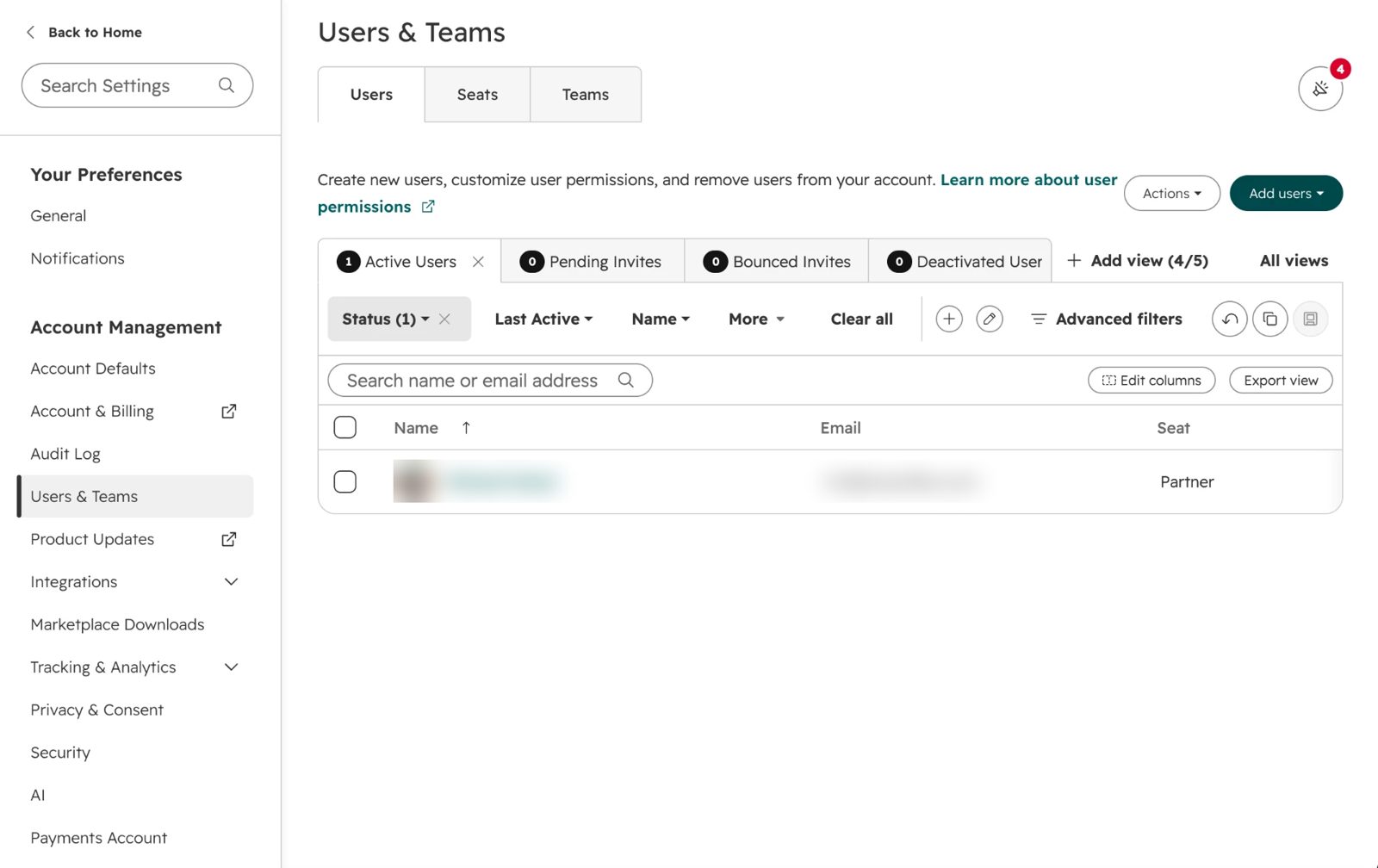
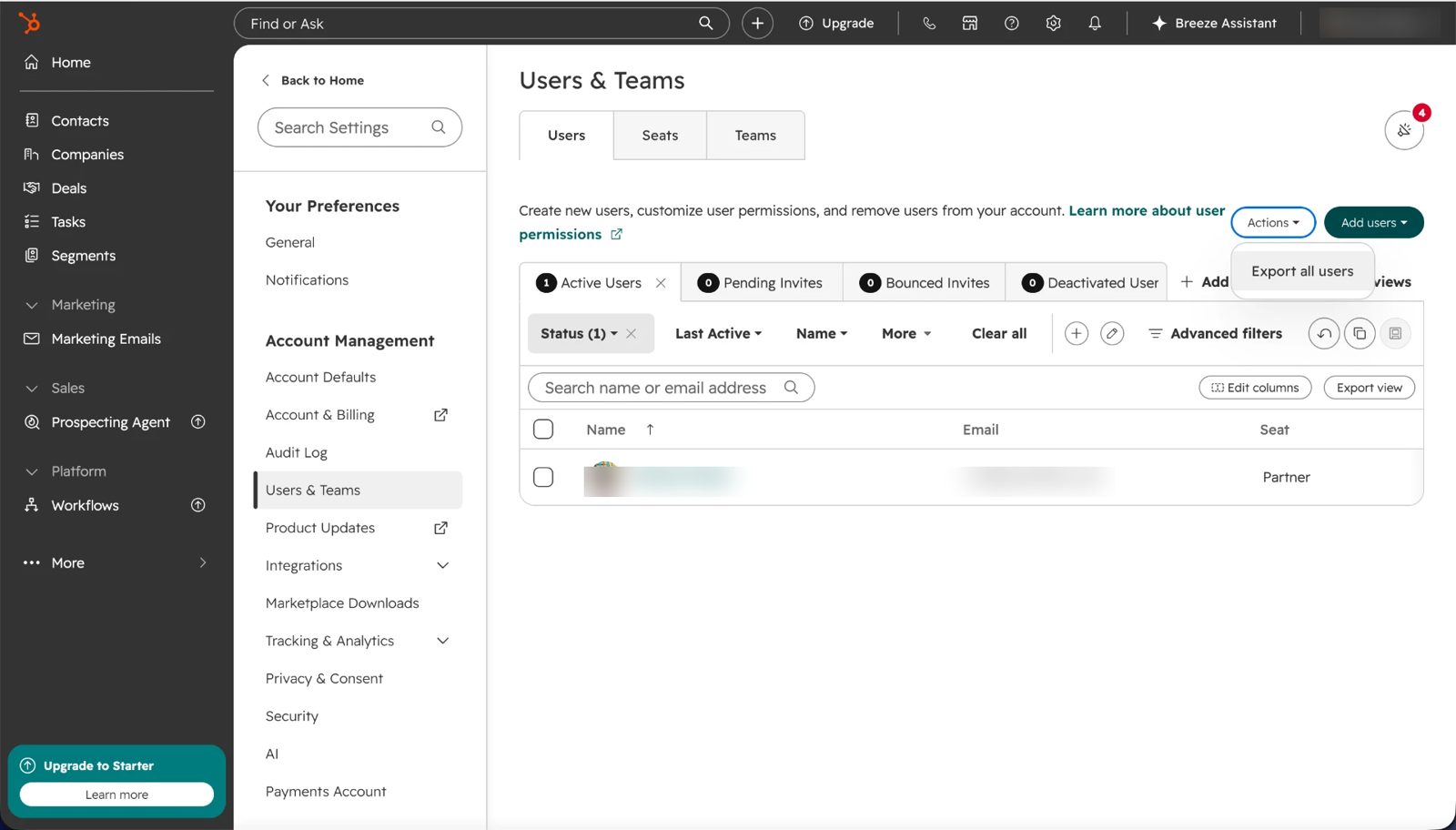
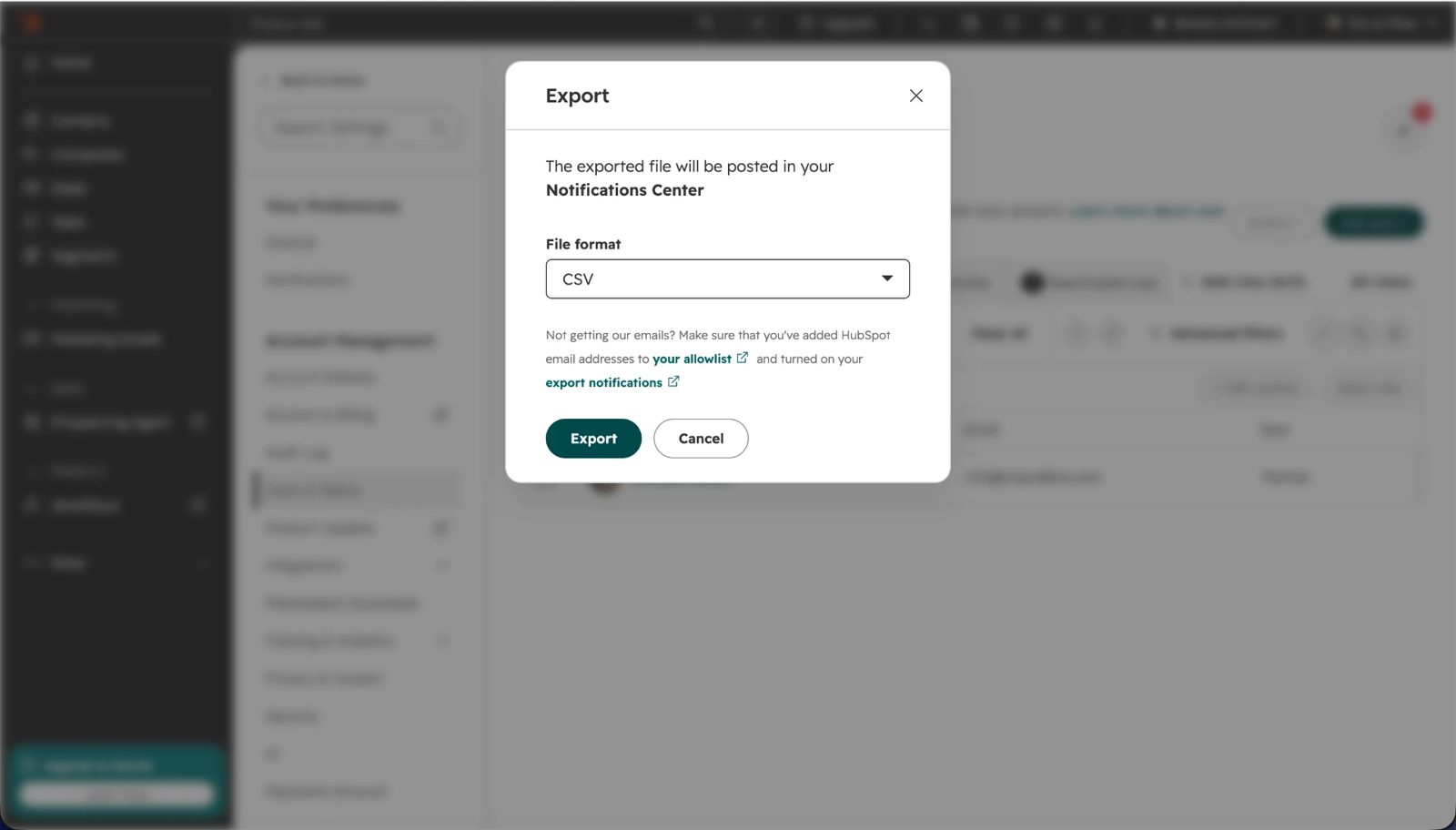
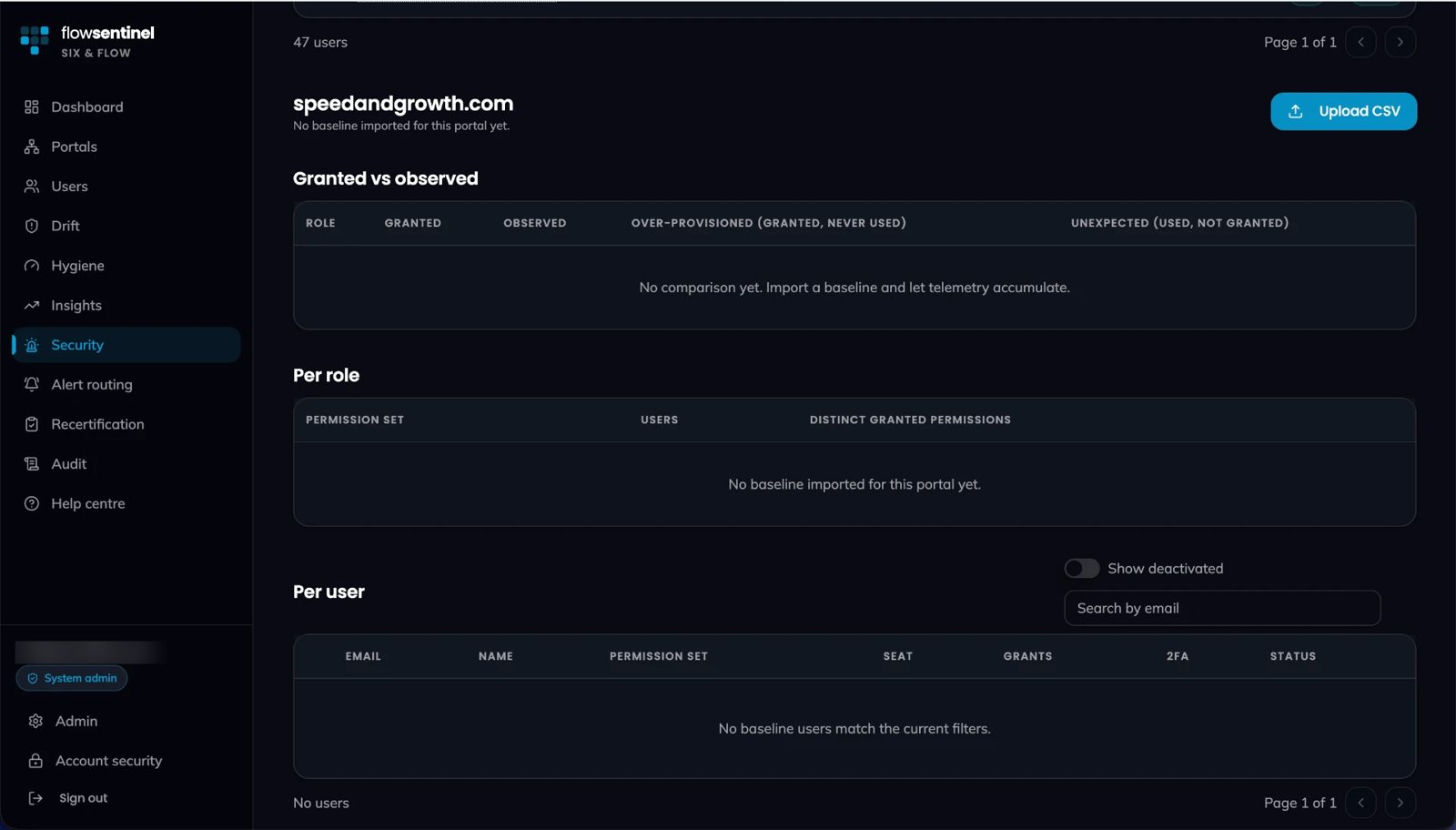
Export all users, not Export view. A filtered view can miss deactivated or pending users and the baseline would be incomplete.
| Control | What it does |
|---|---|
| Upload CSVButton | Administrators only. Choose a HubSpot user export. The file is parsed in your browser, validated and imported as the active baseline for the selected portal. Up to 10,000 rows. |
| From baselineButton | Opens Create templates from this baseline, which proposes role templates from the roles found in the baseline. |
Scan status
Scheduled job status and the contact access scan status live under Admin, System, Operations, which is available to FlowSentinel staff. Alerts on this tab are the output of those scans.